Inside Git: How It Works and the Role of the .git Folder
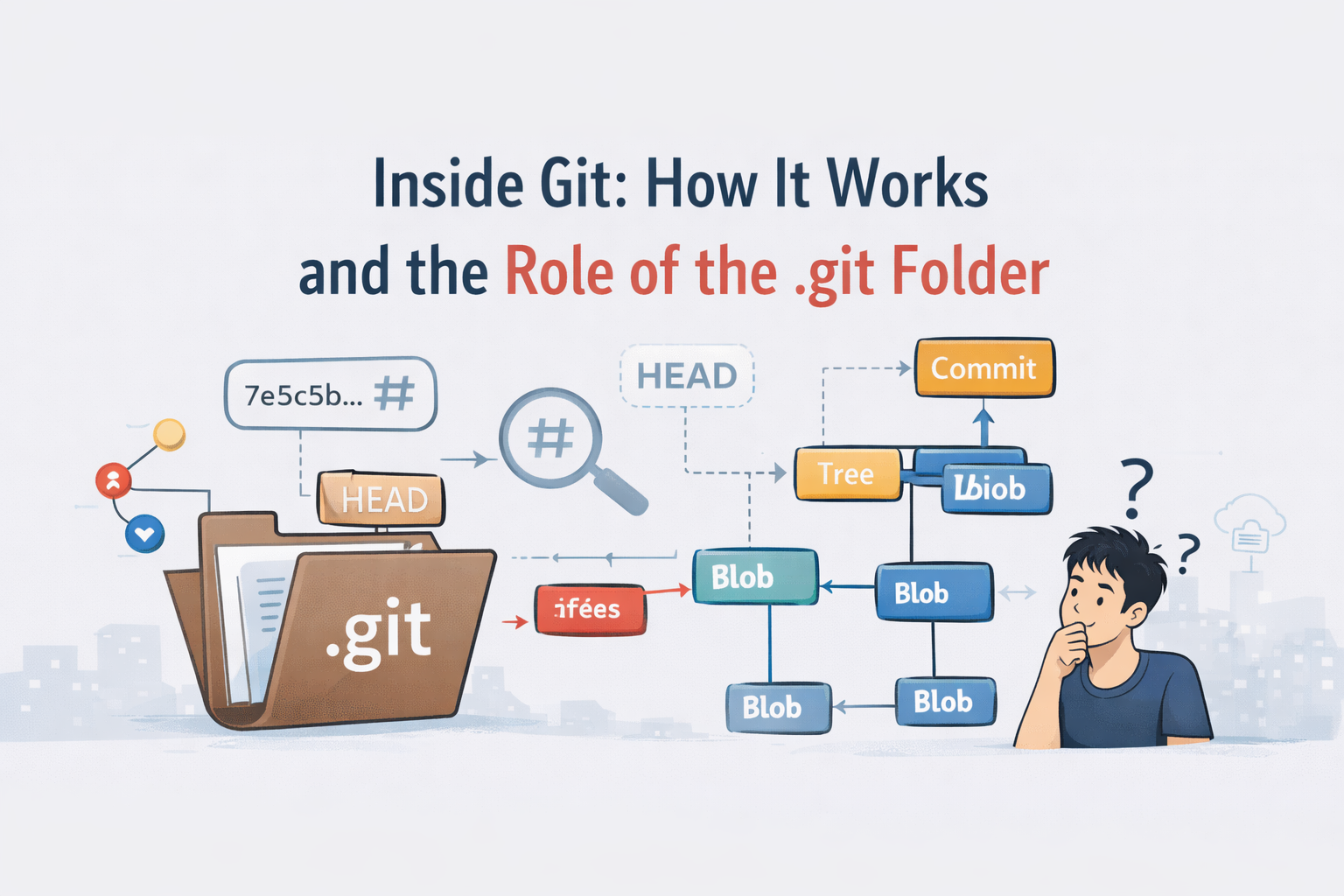
“I know how to use git commands… but what actually happens inside git?”
This was the exact question I had after getting comfortable with commands like git add and git commit.
In the previous blogs, we discussed about Why version control exists and How to use git as a beginner. In this article, we’ll go one level deeper and not get confuse but build a clear mental model of how git works internally.
No fancy theory. No unnecessary depth. Just enough to just to understand git more better.
Why Should we care about git internals?
We don’t need to know git internals to use git.
But understanding them helps us in:
Stop memorizing commands blindly
Debug git issues with confidence
Truly understand what git is doing for you
Once this clicks, git feels far less magical and far more logical.
The most important folder in git: .git
When we want git to track a particular file or folder we run this command:
git init
This creates a hidden folder called:
.git/
This is the heart of git, the entire repository lives here.


If we delete the .git folder:
The code stays
But git history is completely gone
Which means:
Without .git, the project is not longer a git repository.
What’s Inside the .git Folder?
When we open the .git, we can see something like:
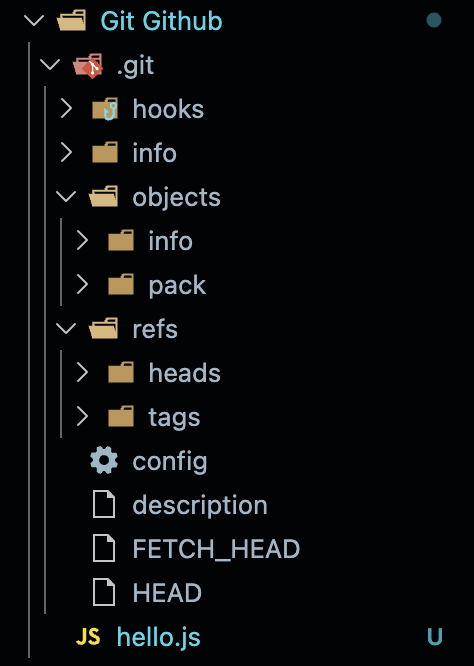
This folders and the files inside it look veryy overwhelming right!? I too felt the same when i first saw them, we don’t need to understand everything actually.
Let’s focus on what actually matters.
The Most Important Parts of .git
HEADHEAD tells git:
“Where am I right now?”
It points to:
The current branch, or the current commit
Whenever we switch branches or commit code, HEAD moves

objects/- Git’s DatabaseThis is where git stores everything.
The files, commits, branches, all of it actually lives here.
Inside
objects/, git stores data as objects, identified by hashes.
index- The Staging AreaThe
indexfile represents thestaging area.When you run:
git add file.js
git updates the
index.This is how git knows what will go into the next commit.
Git Objects
Technical Insight: Git internally uses immutable (unable to change), hash-linked data structures that closely resembles linked-lists and trees. Understanding this makes git feel more easy to understand and logical.
At a low level, git is essentially a content-addressable database built on top of simple data structures.
Commits as a Linked List (or DAG)
Each commit stores:
A reference (hash) to its parent commit
A reference to a tree object (snapshot of the project)
Metadata (author, time, message)
This parent reference means commits are connected like a linked list:

If a commit has multiple parents (like after a merge), the structure becomes a Directed Acyclic Graph (DAG)
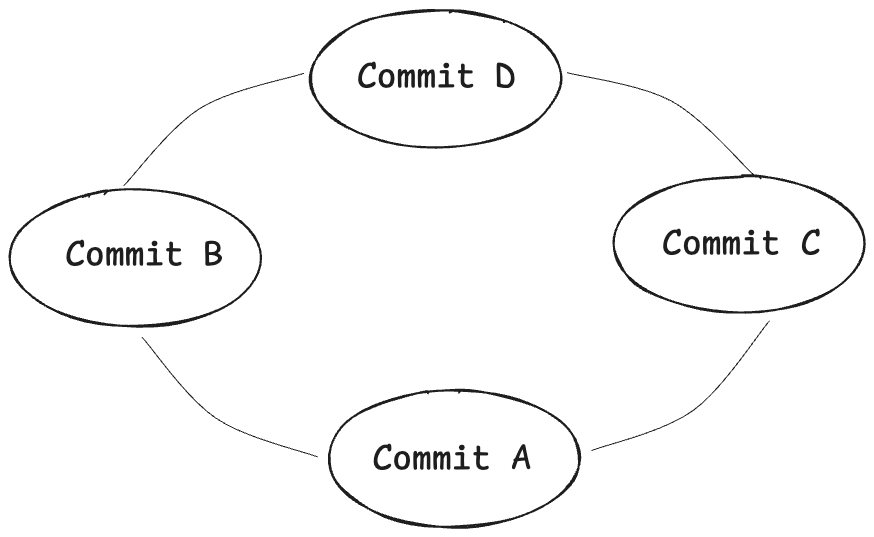
So when we run commands like git log, git is literally walking this linked structure backwards.
Trees as Hierarchical Data Structures
A tree object represents a directory and contains:
References to blobs (files)
References to other trees (subdirectories)
This forms a classic tree data structure:
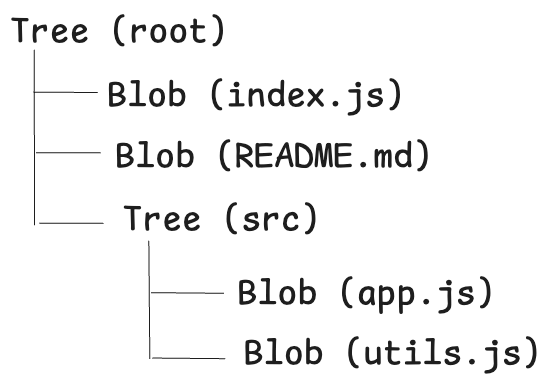
Each commit points to exactly one root tree, which recursively points to everything else.
Blobs: Pure Data Nodes
Blogs are the simplest objects:
They store file content only
No filename, no path
Identified by a hash
This design is why git can efficiently detect duplicate content and avoid storing it twice.
Why these data structures matter
Because git uses:
Linked references (commits → parents)
Tree hierarchies (directories)
Hash-based immutability
It gains:
Fast history traversal
Safe branching and merging
Guaranteed integrity (no silent corruption)
This is why git feels so powerful compared to the old pendrive or folder-based workflows.
Once we see git as data structures + hashes, everything starts to click. The core of git stores everything as objects. There are three main types that we should know.
Blob (File Content)
A blob stores the content of a file, not the filename.
Example:
console.log(“Hello World”)If 2 files have the same content, git stores only one blob.
This makes git efficient.
Tree (Directory Structure)
A tree represents:
A folder, File names and folder hierarchy
It Links:
Filenames → blobs
Subfolders → other trees
Think of a tree as:
A snapshot the project structure
Commit (Snapshot + Metadata)
A commit message contains:
A reference to a tree
Author information
Commit message
Parent commits
How commits, trees, and blobs are connected
Commit → Tree → Blobs (file contents)
This simple structure powers everything in git.
How git tracks changes (important concept)
Git does not store diffs like traditional systems.
Instead, git stores:
Snapshots of your project at each commit
But because blobs are reused, git remains efficient.
What Actually happens during git add
Let’s say we edit a file:
app.js
Then run:
git add app.js
Internally, git:
Creates a blob from file content
Stores it in
objects/Updates the
index(staging area)
No commit yet, just preparation
What happens during git commit
When we run:
git commit -m “initial commit”
git:
Creates a tree from the staging area
Creates a commit object pointing to that tree
Updates HEAD to point to the new commit
That’s it. Now it sounds somewhat understandable?

How git uses Hashes
Git uses SHA-1 hashes (40-character hashes) to identify objects.
Each hash is based on:
Object content
Object type
If content changes → hash changes.
This means:
Data corruption is detectable
History cannot be silently altered
Now I can truly say that git is built on trust through mathematics
Advanced but beginner-friendly git internals
Git refs: How git knows where you are
Refs (short for references) are simple pointer that tell git which commit is important.
We can find them inside:
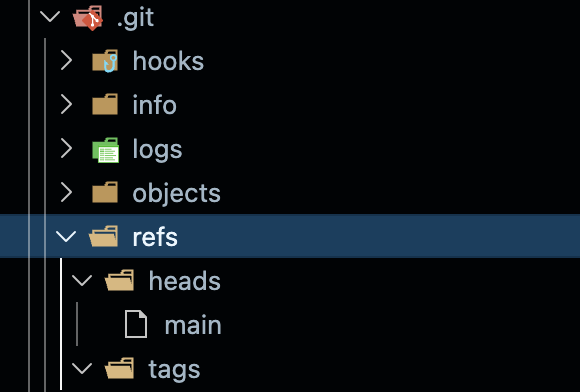
Each ref file contains a commit hash.
Example:

This means:
- “The branch
maincurrently points to this commit.”
So:
Branches are just pointers
Switching branches = moving pointers
HEAD points to one of these refs
This is why branching in git is cheap and fast, no file copying involved.
git logs folder: the safety net
Git keeps detailed logs of reference changes inside:
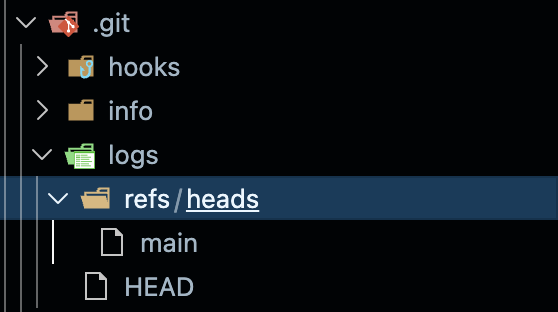
These logs record:
Every checkout
Every commit
Every reset
Every rebase
This is why commands like:
git reflog
can recover lost commits even after:
git reset --harddeleting branches
accidental mistakes
git rarely loses data because it logs almost everything.
git hooks
git hooks are scripts that run automatically on certain git events.
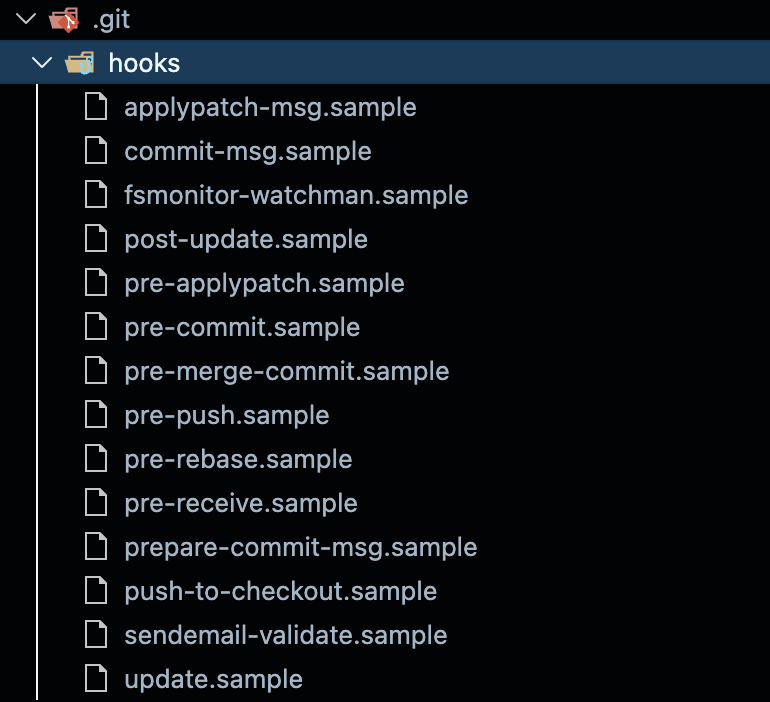
Common hooks include:
pre-commit → run before a commit is created
commit-msg → validate commit messages
pre-push → run before pushing to remote
Example use cases:
Prevent commits with failed tests
Block bad commit messages
Hooks are:
Local by default
Written in shell, Python, node, etc
How all this fits together
Refs (branches, tags) → HEAD → Commit (linked list / DAG) → Tree (directory structure) → blob (file content)
And everything is:
Stored by hash
Logged for safety
Scriptable via hooks
Conclusion
Instead of thinking:
- “git saves my files”
Think:
- “git stores content-addressed snapshots with references”
Once we see git this way, commands start making sense naturally.
Understanding git internals doesn’t make us git expert overnight, but it changes hot we think about version control.
About the author
- the topics and concepts which i learn and get more fascinated i write about them here...
Comments
Join the discussionNo comments yet. Be the first to comment.